
Your site shows one sentence on a white page, “There has been a critical error on this website”, and nothing else loads, often not even the login screen. The message hides the real problem on purpose, but WordPress knows exactly which file broke and tells you in two places: an email to the site admin address and, if you switch it on, a log file. This guide shows where to look, then walks through seven fixes in the order they are worth trying, from the safest to the most technical. Each of the seven methods was run on a local WordPress 7.1.2 test install before being written down.
Quick answer. Check the site’s admin email inbox for “Your Site is Experiencing a Technical Issue”: it names the plugin or theme that crashed and carries a recovery link valid for one day. If it never arrived, turn on debug logging (method 2); the PHP Fatal error line names the file where PHP stopped. Start with plugins: in the Fixing WordPress forum threads we read, a plugin was the confirmed cause in 14 of 24.
What “There has been a critical error on this website” means
A piece of PHP code on your site crashed with a fatal error. Most often it is a plugin or the theme, as the thread counts below show. Since WordPress 5.2, WordPress catches that crash instead of showing a blank page, returns an HTTP 500 response and prints the short message you see now. The handler catches PHP’s fatal error types (E_ERROR, E_PARSE, E_USER_ERROR, E_COMPILE_ERROR, E_RECOVERABLE_ERROR).
What you see depends on where you are:
| Where | What the page says |
|---|---|
| Any public page, as a visitor | Only “There has been a critical error on this website.” plus a link to the WordPress troubleshooting docs |
| /wp-admin/ or the login page | The same error, plus “Please check your site admin email inbox for instructions.” |
| wp-admin, after using the recovery link | A working dashboard with a “You are in recovery mode” notice |
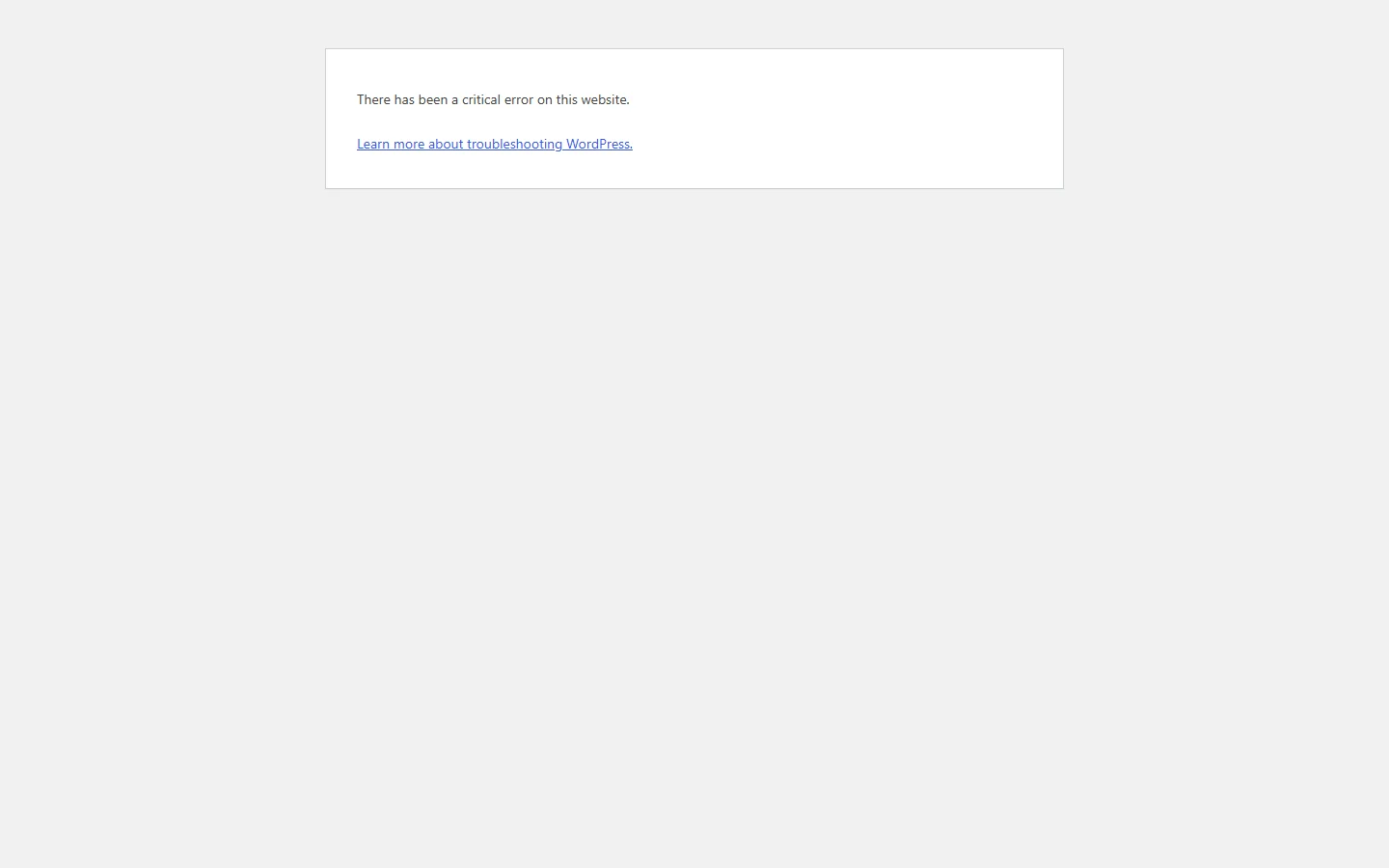
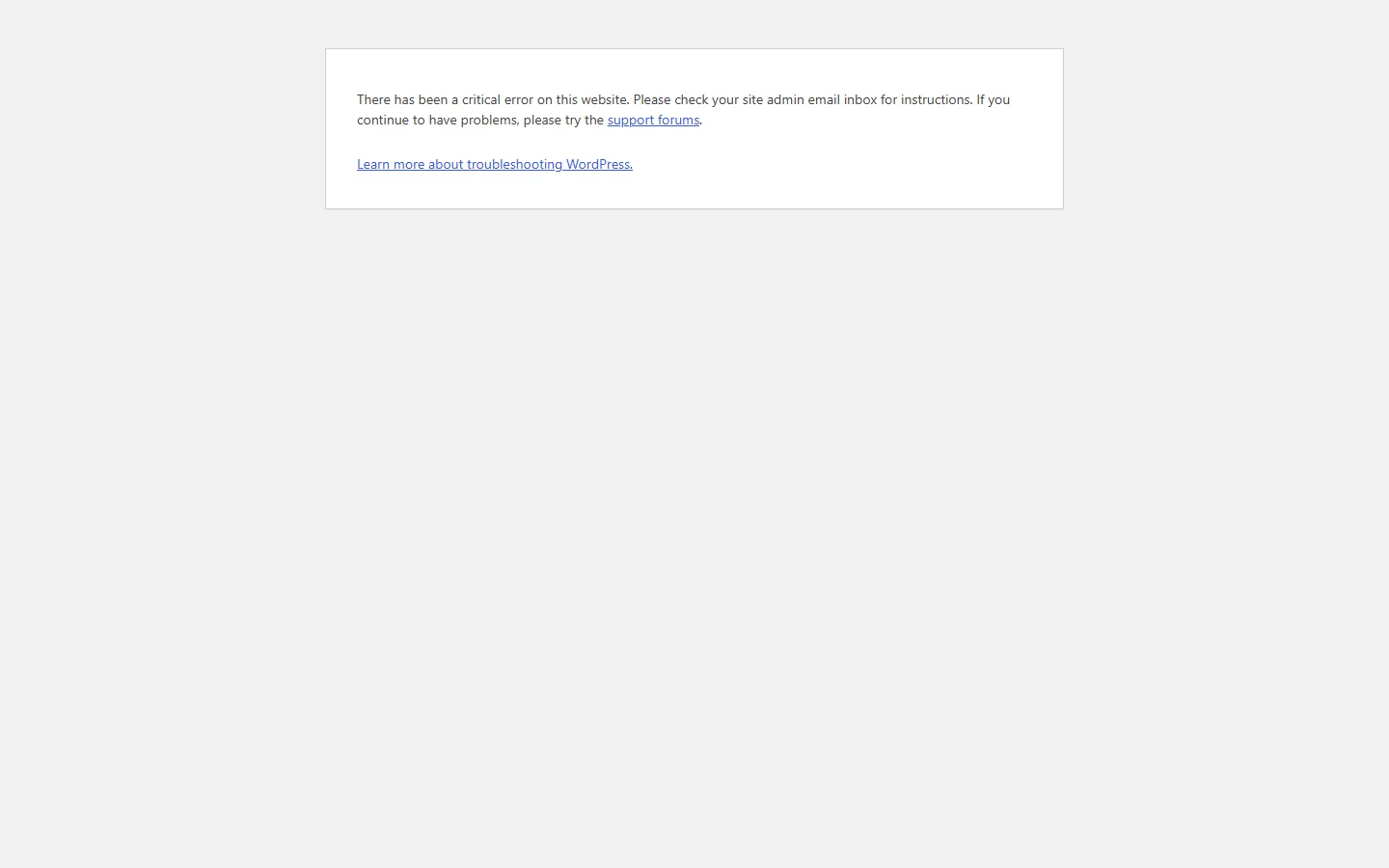
The famous “white screen of death” is the same crash without the safety net in front of it; more on that in Related errors. One more reason to fix this quickly: Google slows down crawling on 5xx errors, and its indexing pipeline eventually removes URLs that persistently return a server error, per Google’s documentation, last updated February 4, 2026.
What usually causes it: the support threads we went through
Instead of guessing, we went through 102 threads opened on the general Fixing WordPress forum between January 29 and September 29, 2026, and read them on October 1, 2026. In 24 the cause was confirmed in the thread, 54 never reached a clear cause, and 24 described another symptom and were excluded. The target was 40 confirmed threads, but the forum listing stops at page 60, roughly eight months back, so the sample ran out at 24. With numbers this small we give counts, not percentages.
| Confirmed cause | Threads (of 24) |
|---|---|
| A plugin | 14 |
| An interrupted or broken update (all 4 were core files, not plugins) | 4 |
| The theme (including code added to a child theme) | 3 |
| Something else (a theme file deleted by hand, a missing database table) | 2 |
| Memory limit | 1 |
| PHP version | 0 (two threads started after a PHP change, neither reached a confirmed cause) |
An update was the explicit trigger in 8 of the 24.
We also counted a second sample: 77 threads on the critical-error tag, where 40 reached a confirmed cause and a plugin was the culprit in 30 of those 40. The explanation is simple: 54 of the 77 tagged threads sit in a specific plugin’s support forum, where people post when they already suspect that plugin. In the general forum, where people arrive with no idea what broke, interrupted updates and themes show up more often. The plugin is cause number one in both.
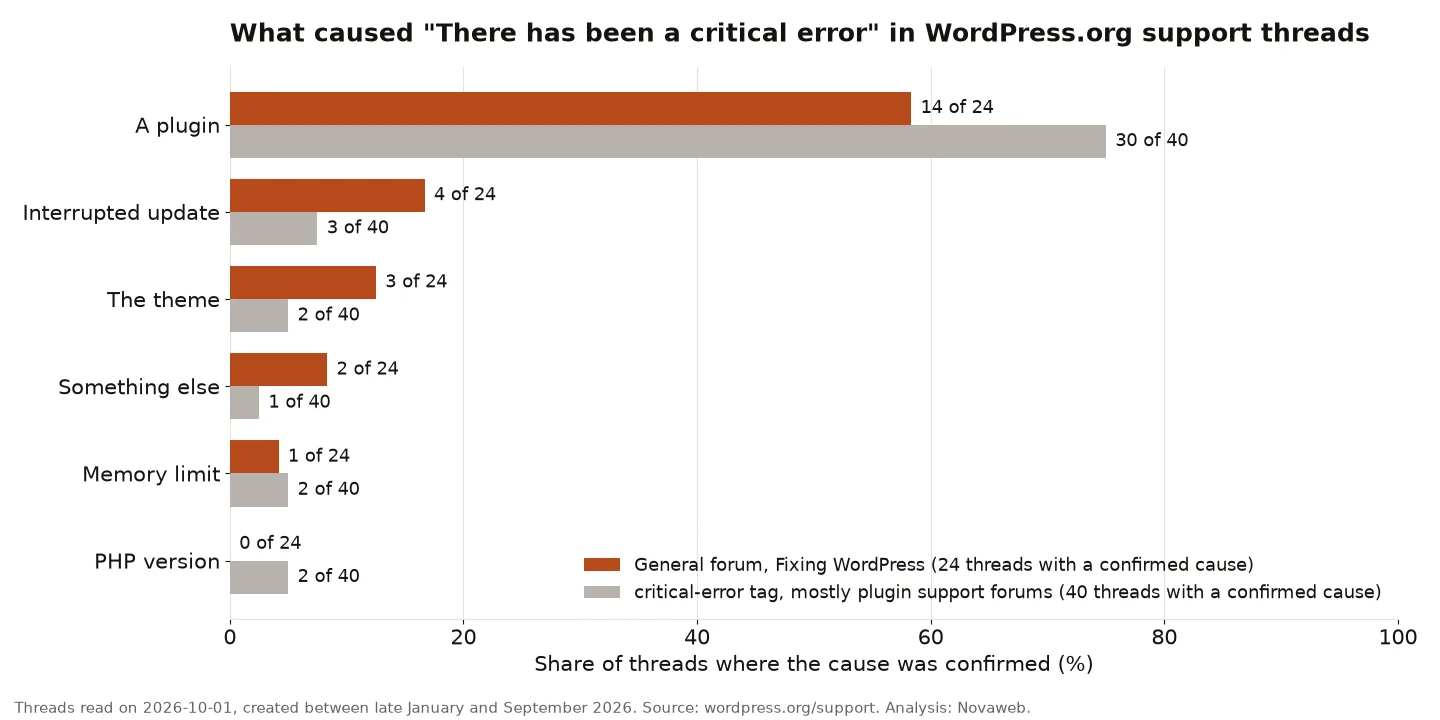
Only 24 of the 78 eligible general threads reached a confirmed cause, and most dead ends stop at the same point: a volunteer asks for the error log and never gets it.
How we counted: we read all threads on October 1, 2026. In the general forum we opened every listed thread whose title pointed to a crash or a critical error; on the critical-error tag, the threads in the order they were listed. A cause counts as confirmed only when the plugin or theme author, a volunteer reading the log, or the original poster (once the fix worked) confirmed it in the thread. One cause per thread. Threads about another symptom, such as a blank page or an HTTP 500 with no critical error message, were excluded.
The 24 general forum threads with a confirmed cause
- Client’s website Crashed/Critical Error: A plugin
- There has been a critical error on website. Please check your site admin em: A plugin
- Unable to repair critical error: A plugin
- Fatal error on site: A plugin
- Fatal error: Uncaught TypeError: call_user_func_array(): An interrupted or broken update
- Activating ai connector plugin results fatal error (WP 7.0): An interrupted or broken update
- Cannot log in due to critical error: A plugin
- Fatal error on website; unable to load admin panel: The theme
- Website and wp-admin show critical error: A plugin
- There has been a critical error on this website.: A plugin
- Critical Error after deleting init.php: Something else
- There has been a critical error on this website: A plugin
- Fatal Error Message From WordPress: A plugin
- I selected to activate a plug in and login had fatal error: A plugin
- Fatal error: A plugin
- Critical Error when clicking on basket: Something else
- Fatal Error in AI Client: A plugin
- critical error after select child theme: The theme
- 6.9.1 Update + BackWPup + AIOSEO = Critical error: A plugin
- 7.02 crash: A plugin
- White Screen and errors after 7.0.2 install: Memory limit
- Auto-upgrade 6.9.3 makes error 500: An interrupted or broken update
- Update crashed site: The theme
- 500 error: An interrupted or broken update
The 40 critical-error tag threads with a confirmed cause
- Critical Errors caused by Maspik: An interrupted or broken update
- Problem with latest version (Team Showcase): A plugin
- Critical error on /cz/ pages after WordPress 7.1: A plugin
- Wordfence causing critical error on website: Memory limit
- Critical error after updating AAM to 7.1.3: A plugin
- Version 2.8.7 breaks WordPress: A plugin
- WordPress 7.1 breaks WP Activity Log 5.6.5: A plugin
- My website is having this problem: A plugin
- Critical errors on my website (FIFU): A plugin
- Version 1.6.0 critical error; update to 1.6.1: A plugin
- Trusona plugin login issue after latest update: A plugin
- Visual Composer plugin: A plugin
- critical errors (Smush): An interrupted or broken update
- 7.3.7.3 resulted in a critical error: A plugin
- Critical Error – Memory Exhaust (WP Staging): Memory limit
- Critical Error Detected on your Web Site: A plugin
- Critical error on 3.7.0 (AM LottiePlayer): A plugin
- 2.2.8 Critical Error (Imagify): A plugin
- 4.0.4 breaks website (PayPal Payments): PHP version
- There has been a critical error on this website: The theme
- Critical error due to Virtue theme: The theme
- Critical Error following update to 4.10.4 (Klarna): A plugin
- Update Causes Website Error (Import/export users): A plugin
- Critical Error due to ConvertKit Plugin: A plugin
- Critical Error (Paid Member Subscriptions): A plugin
- Error from W3 Total Cache: A plugin
- Critical error message with no details: A plugin
- Critical error – no email – webpage live: A plugin
- Critical error (WooCommerce Stripe): A plugin
- Critical Error BuddyPress Member Profile (wpForo): A plugin
- Critical error during import process (GiveWP): PHP version
- Timeline integration leads to critical error (Herzog Dupont): A plugin
- Critical error when adding or editing a post or page: A plugin
- Critical error when clicking individual event info: A plugin
- Critical error after installing plugin (Polylang switcher): A plugin
- Last Update 10.5.0 (WooCommerce): An interrupted or broken update
- Critical Error after visiting tab page hcaptcha-forms: A plugin
- Kubio generates critical error on homepage: Something else
- Critical error – check your site admin email: A plugin
- After update got the critical error: A plugin
Before you start
Make a backup first, even of the broken site: copy the files and export the database from your hosting panel. A backup fixes nothing, but it lets you undo any step below. You also need access to the site admin inbox and, for some methods, to the files through your host’s file manager or over SFTP. One rule for everything that follows: rename, don’t delete. A rename is reversible: you can put the original name back at any time.
How to fix the critical error
The methods run from the safest and fastest to the most technical. Stop as soon as the site is back.
1. Use the recovery mode email
When the crash hits the admin area, WordPress emails the site admin address; the subject starts with your site’s name, followed by “Your Site is Experiencing a Technical Issue”. Here is the email generated on our test install, shortened to the useful parts (addresses in the examples are replaced with example.com):
Subject: [Critical error test site] Your Site is Experiencing a Technical Issue
In this case, WordPress caught an error with one of your plugins, NW Test Woo Add-on.
https://example.com/wp-login.php?action=enter_recovery_mode&rm_token=EXAMPLE-TOKEN&rm_key=EXAMPLE-KEY
To keep your site safe, this link will expire in 1 day. Don’t worry about that, though: a new link will be emailed to you if the error occurs again after it expires.
Error Details
============= An error of type E_ERROR was caused in line 9 of the file /wordpress/wp-content/plugins/nw-test-woo-addon/nw-test-woo-addon.php. Error message: Uncaught Error: Call to undefined function wc_get_product() in /wordpress/wp-content/plugins/nw-test-woo-addon/nw-test-woo-addon.php:9
That email often answers the whole question: the plugin’s name and the exact file and line. The /wordpress/ part of the paths belongs to the test install; on your host the path starts differently, but everything after wp-content/ reads the same.
Open the link. You land on the login screen with a “Recovery Mode Initialized. Please log in to continue.” notice:
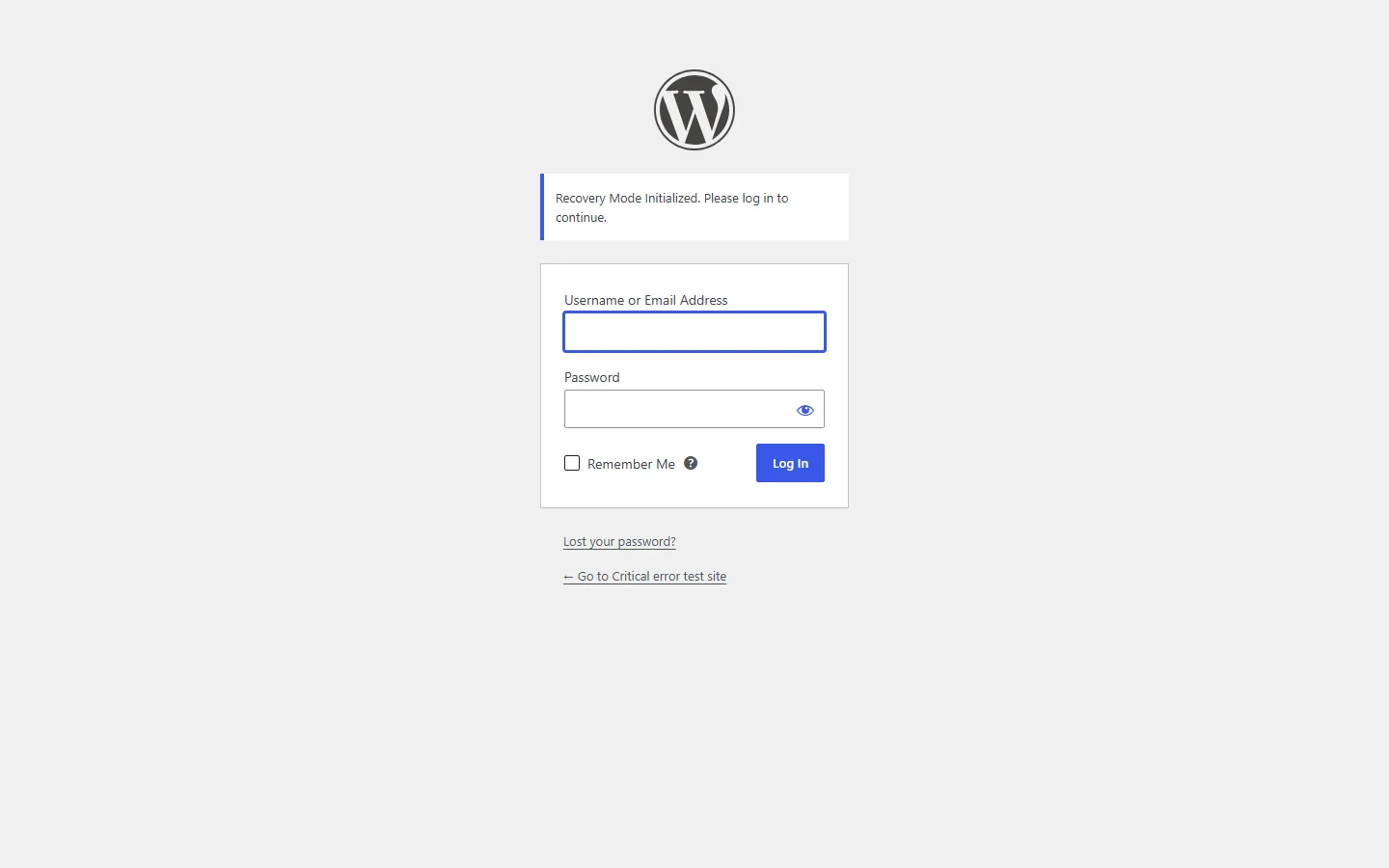
After logging in, the dashboard tells you one or more plugins failed to load properly. Go to Plugins: the broken one is highlighted and “paused during recovery mode”, with the error type and the file printed under it.
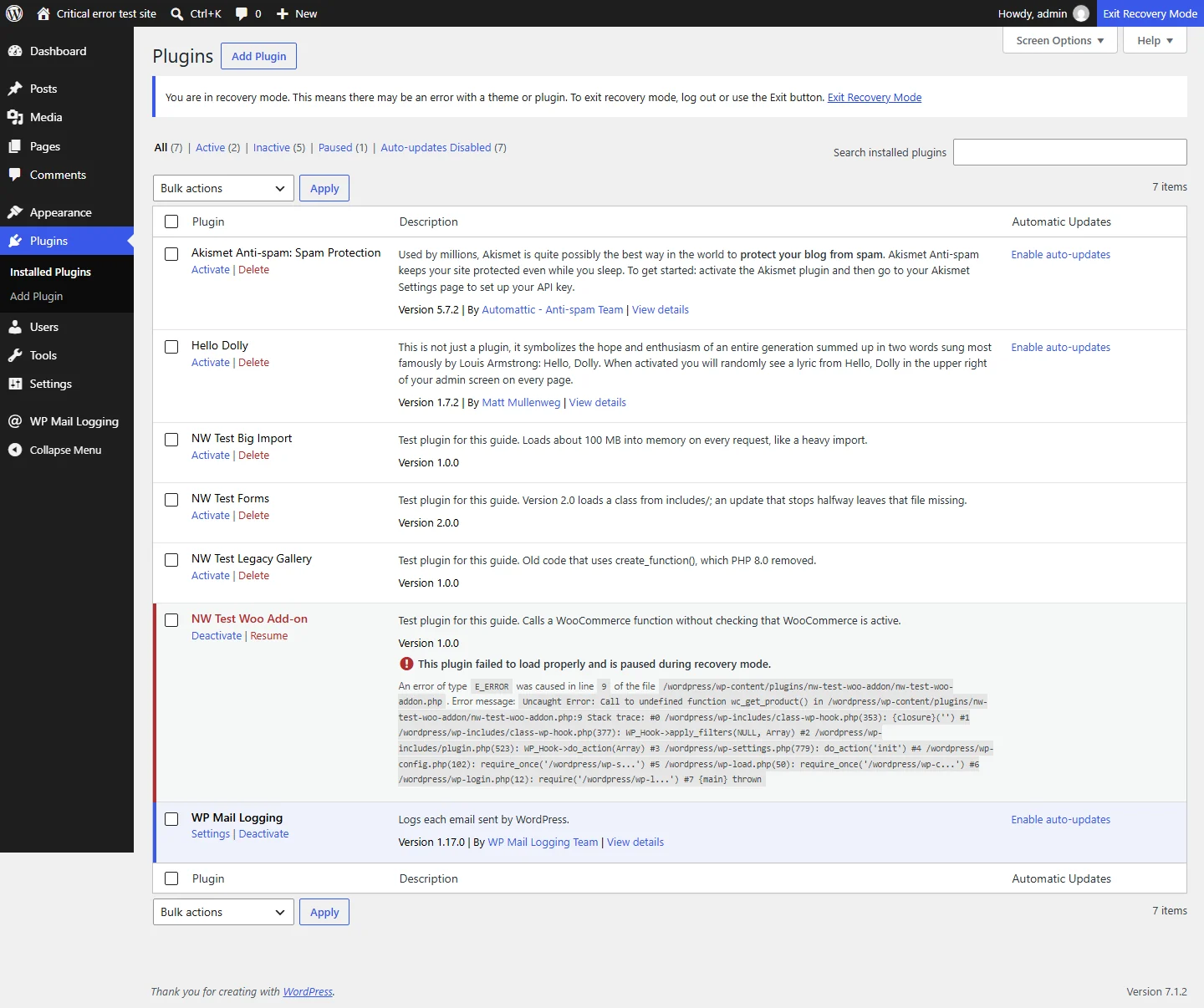
Click Deactivate, then Exit Recovery Mode in the admin bar. Keep in mind what recovery mode does not do: per the WordPress 5.2 dev note, the broken plugin is paused only inside your session. Visitors keep seeing the error until you deactivate or fix it.
If the email never arrived
It happens often enough: across the 102 general forum threads, the recovery email came up in 41. It named the culprit in 5, in 11 the author says it never arrived or can’t be found, and in 5 more the link or recovery mode itself failed. WordPress’s own code explains part of that. The email goes out only when the error hits wp-login.php or an admin page, so open /wp-admin/ once if the error has only appeared on the front end so far. It goes to the admin address from Settings > General (or to RECOVERY_MODE_EMAIL, if set in wp-config.php), at most once per day, and the link expires after one day. Check spam too.
When wp-admin loads normally and the error only shows on the public site, skip the email entirely: log in as usual and deactivate the suspect plugin from the Plugins screen. If the email is a dead end, the log is the next stop.
2. Turn on the debug log and read the error
Edit wp-config.php in the site root. Don’t add new lines yet: the file already contains define( 'WP_DEBUG', false );, just above the comment “Add any custom values between this line and the “stop editing” line.” Find that line, change false to true, then add the other two constants directly under it, as described in the WordPress debugging documentation:
define( 'WP_DEBUG', true );
define( 'WP_DEBUG_LOG', true );
define( 'WP_DEBUG_DISPLAY', false );

/* Add any custom values between this line and the "stop editing" line. */
If your wp-config.php has no WP_DEBUG line at all, add all three lines in that same spot, above the comment.
The placement matters. On the test install we first added all three lines below that comment, leaving the original WP_DEBUG line on false: no debug.log was ever created, and PHP logged a “Constant WP_DEBUG already defined” warning (on a real host it lands in the server’s log, not on the page). In WordPress’s code, WP_DEBUG_LOG does nothing while WP_DEBUG is false, and the first definition of a constant wins.
WP_DEBUG_DISPLAY false keeps errors out of your visitors’ pages; they go to a file instead. Reload the broken page once, then open wp-content/debug.log. Here is the real one from our test:
[01-Oct-2026 17:59:32 UTC] PHP Fatal error:  Uncaught Error: Call to undefined function wc_get_product() in /wordpress/wp-content/plugins/nw-test-woo-addon/nw-test-woo-addon.php:9
Stack trace:
#0 /wordpress/wp-includes/class-wp-hook.php(353): {closure}('')
#1 /wordpress/wp-includes/class-wp-hook.php(377): WP_Hook->apply_filters(NULL, Array)
...
Usually the first line is enough. Look for plugins/<folder>/ or themes/<folder>/ in the path: that folder is the component where PHP stopped, and the one you deactivate to bring the site back. The number after the colon is the line number. The folder is not always the root cause: in this example, the real problem is a missing dependency. Here, the plugin in nw-test-woo-addon called a WooCommerce function on a site where WooCommerce wasn’t active.
If the first line points into wp-includes/ instead, a plugin or theme probably handed bad data to a WordPress function: read down the stack trace to the first line with plugins/ or themes/. In our test, a plugin passed an array to sanitize_title(); the first line named wp-includes/formatting.php, and the plugin showed up at entry #2.
Your host’s own error log answers the same question without touching any file; in the tagged sample it was the method that found the cause in 8 of the 40 threads. Where it lives depends on the hosting panel; check your host’s docs.
When you’re done, set WP_DEBUG and WP_DEBUG_LOG back to false (WP_DEBUG_DISPLAY is already false) and delete debug.log. The documentation advises against debug tools on live sites, and debug.log sits in wp-content, where it can be publicly readable.
3. Deactivate plugins by renaming the folder
If you can’t get into wp-admin and a plugin is the suspect, renaming its folder in your host’s file manager or over SFTP is how you switch it off from outside. One thing the tests made clear: the rename alone deactivates nothing. WordPress just skips a plugin whose file is missing, and the moment you put the name back, the error comes back with it. What makes it stick is opening the Plugins screen once while the folder is renamed: that is when WordPress deactivates the missing plugin, with a “has been deactivated due to an error: Plugin file does not exist.” message.
If you know which plugin it is, from the email or the log: rename only that plugin’s folder, for example nw-test-woo-addon to nw-test-woo-addon.off. The site loads again and the rest of the plugins keep running. Log into wp-admin, open the Plugins screen once, then rename the folder back if you want to update, replace or delete the plugin from the admin; it stays inactive.
If you have no idea which one, rename wp-content/plugins itself, for example to plugins.off:
wp-content/
  debug.log
  index.php
  plugins.off/
  themes/
The site loads again. Open the Plugins screen once; every active plugin gets the “deactivated due to an error” message.
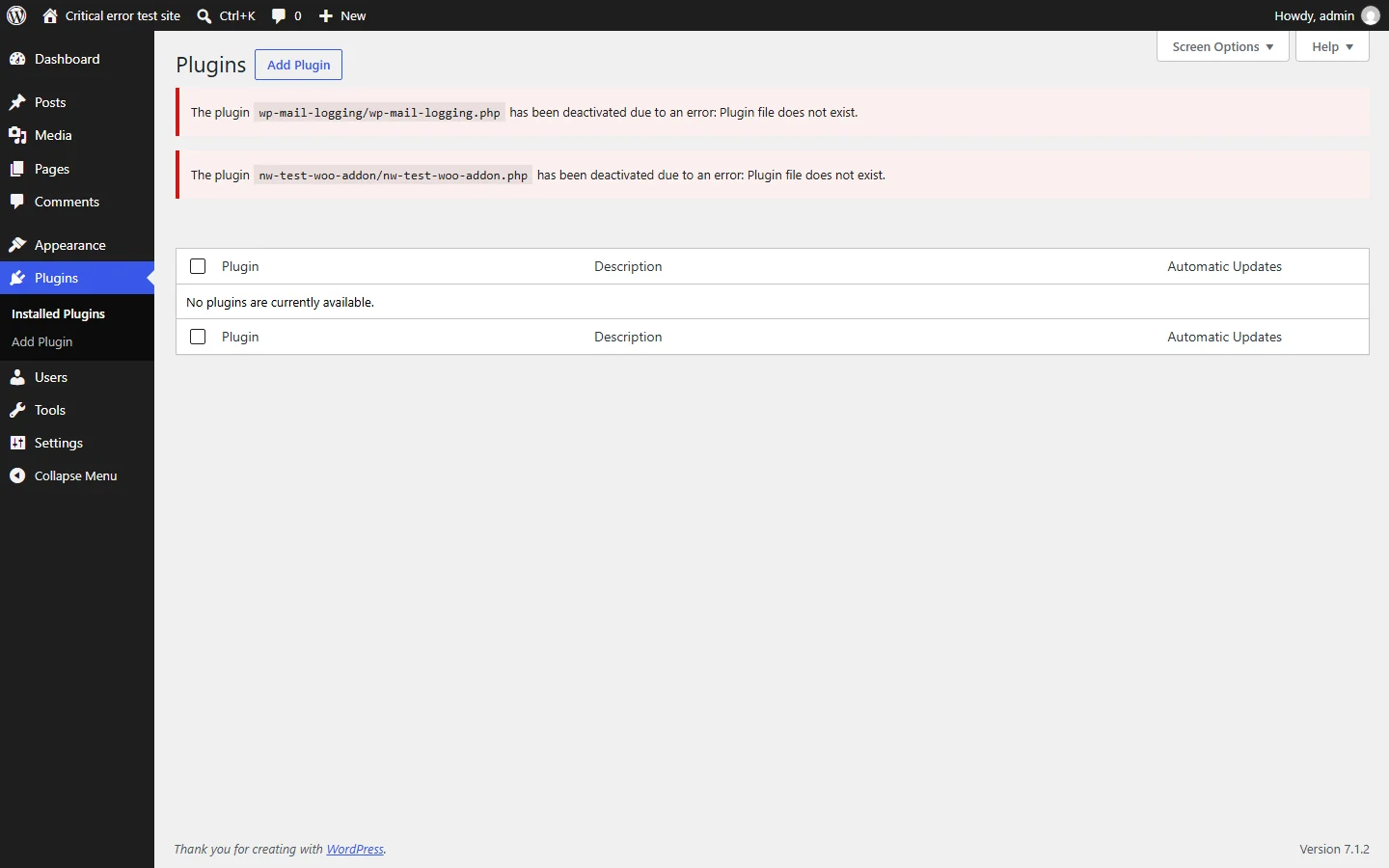
Rename the folder back to plugins, then reactivate the plugins one by one, reloading the site after each. In our test, clicking Activate on the broken one led straight to the critical error page instead of the “Plugin activated.” notice. Rename that plugin’s folder, open Plugins once more, and the site is back; that plugin is the one to remove or replace.
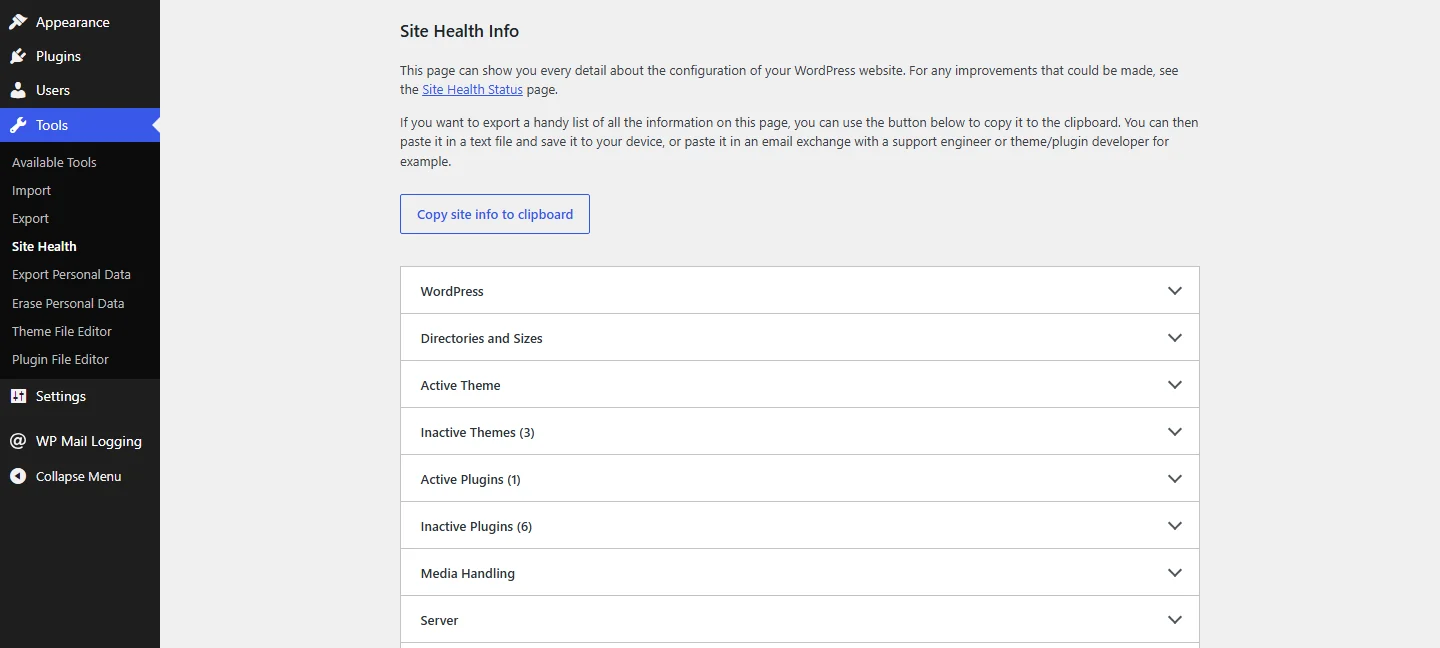
One thing you lose with the whole-folder rename: WordPress does not remember which plugins were active before. If the admin still loads, note the active plugins first (Tools > Site Health > Info, under Active Plugins). If it doesn’t, copy the active_plugins row from the database’s options table (wp_options with the default prefix) before you rename anything: in our test it still held the full list after the rename and was emptied when the Plugins screen opened. The Recently Active tab never appeared, because WordPress records there only plugins you deactivate yourself.
4. Repair an update that didn’t finish
An update that stopped halfway leaves files missing, and the log shows it as “Failed opening required” or “Class … not found”. The path in that line tells you what to reinstall. In the general forum sample, all 4 broken updates were core; in the tagged sample, the 3 broken updates were plugins. Below are both repairs.
If the path points at a plugin:
[01-Oct-2026 18:00:19 UTC] PHP Warning:  require_once(/wordpress/wp-content/plugins/nw-test-forms/includes/class-nw-test-forms-backup.php): Failed to open stream: No such file or directory in /wordpress/wp-content/plugins/nw-test-forms/nw-test-forms.php on line 7
[01-Oct-2026 18:00:19 UTC] PHP Fatal error:  Uncaught Error: Failed opening required '/wordpress/wp-content/plugins/nw-test-forms/includes/class-nw-test-forms-backup.php' (include_path='.:') in /wordpress/wp-content/plugins/nw-test-forms/nw-test-forms.php:7
The fix is a clean copy of the same plugin version. When wp-admin is down too, use this order: rename that plugin’s folder (or use recovery mode), get into wp-admin, open the Plugins screen once so WordPress deactivates the plugin, then rename the folder back; it stays inactive. Now go to Plugins > Add Plugin > Upload Plugin and upload the ZIP of the same version. WordPress recognizes it:
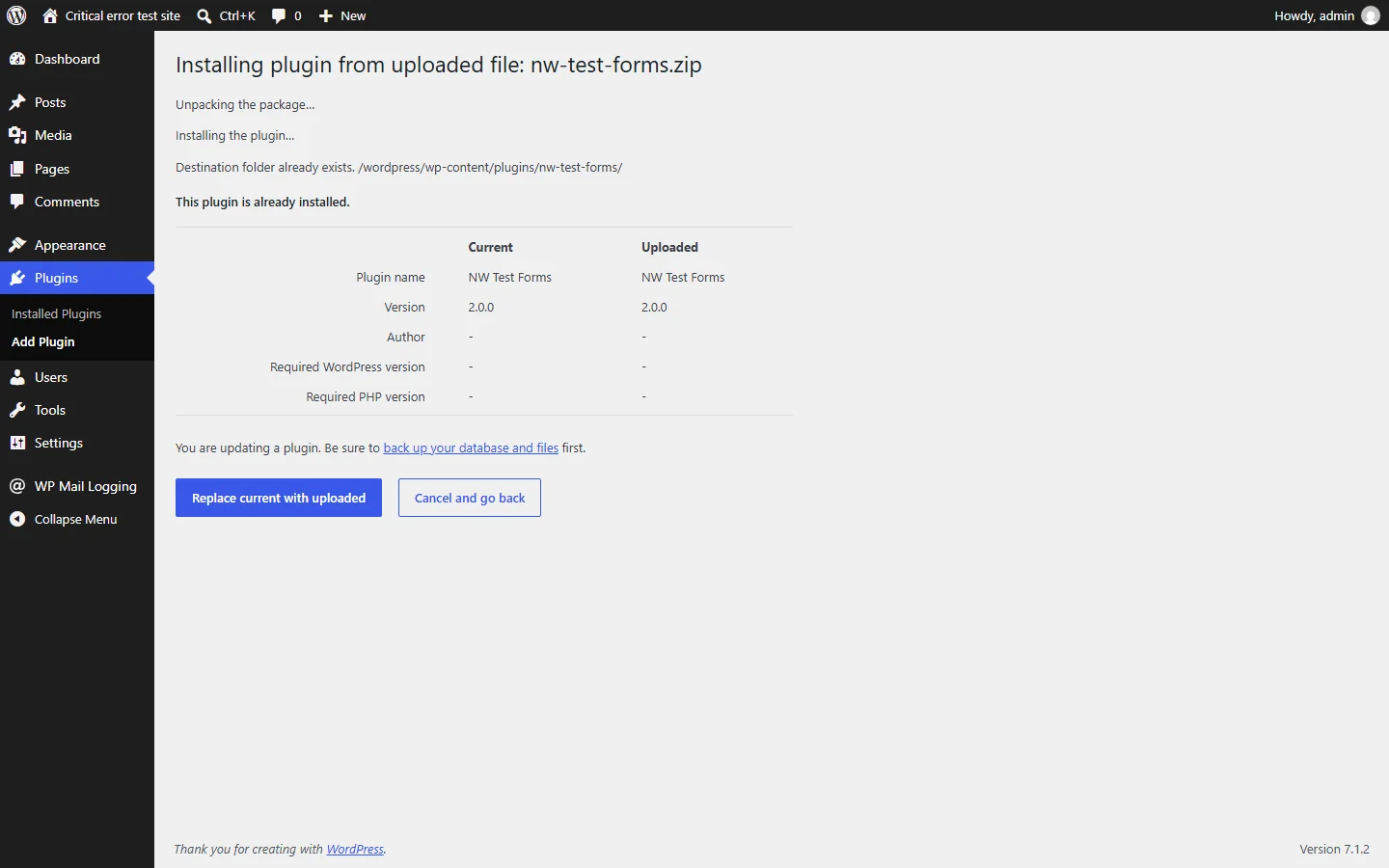
Click “Replace current with uploaded”, then Activate. The missing file was back and the site returned.
For a free plugin, the ZIP of the exact version you had is on its wordpress.org page: the “Advanced View” link, then the “Previous Versions” section at the bottom, with a version list (“Please select a specific version to download.”) and a Download button. The page warns that old versions may not be secure, so match your version, repair, then update properly. For a paid plugin, download it again from your account with the vendor.
If the log says “Failed opening required” or “Failed to open stream” for a file in wp-includes/ or wp-admin/, a core file is missing or out of sync. A path into wp-includes/ on its own isn’t proof; method 2 shows when a plugin is behind it. We reproduced it by deleting one core file; debug.log reads:
[02-Oct-2026 07:14:40 UTC] PHP Warning:  require(/wordpress/wp-includes/class-wp-embed.php): Failed to open stream: No such file or directory in /wordpress/wp-settings.php on line 262
[02-Oct-2026 07:14:40 UTC] PHP Fatal error:  Uncaught Error: Failed opening required '/wordpress/wp-includes/class-wp-embed.php' (include_path='.:') in /wordpress/wp-settings.php:262
Don’t count on the dashboard here: in our test, Dashboard > Updates showed the same critical error. If the admin won’t load, find your version in wp-includes/version.php, on the line that starts with $wp_version (for example $wp_version = '7.1.2';). What worked: download the archive of the exact same WordPress version from the releases page and copy its files over the installation through SFTP or the file manager, leaving out the wp-content folder and wp-config.php. That replaces every core file while your plugins, themes, uploads and configuration stay untouched. On the test install, that meant copying 3,338 files; the missing one was back and the site loaded. Once the site works again, Dashboard > Updates also offers a button for reinstalling the current version, for the milder cases where the admin still loads.
5. Switch to a default theme
When the log points to themes/<folder>/, the crash lives in the theme, often in code pasted into functions.php:
[01-Oct-2026 18:01:12 UTC] PHP Fatal error: Uncaught Error: Call to undefined function nw_register_custom_blocks() in /wordpress/wp-content/themes/nw-test-child/functions.php:4
Rename the active theme’s folder, as in method 3; this is also what the Common WordPress Errors guide describes for sites without admin access. What happens next depends on the theme, and we tested both cases:
- A child theme. The site loaded again right after the rename, because the parent theme was still on disk.
- A standalone theme. Visitors got a completely blank page, and a logged-in administrator saw ‘The theme directory “nw-test-standalone” does not exist.’ instead. The site is not back yet at this point.
In both cases, the step that completes the fix is opening Appearance > Themes. WordPress checks the active theme when you open that screen (and in the Customizer), not on every page load, so that is where the notice and the switch appear:
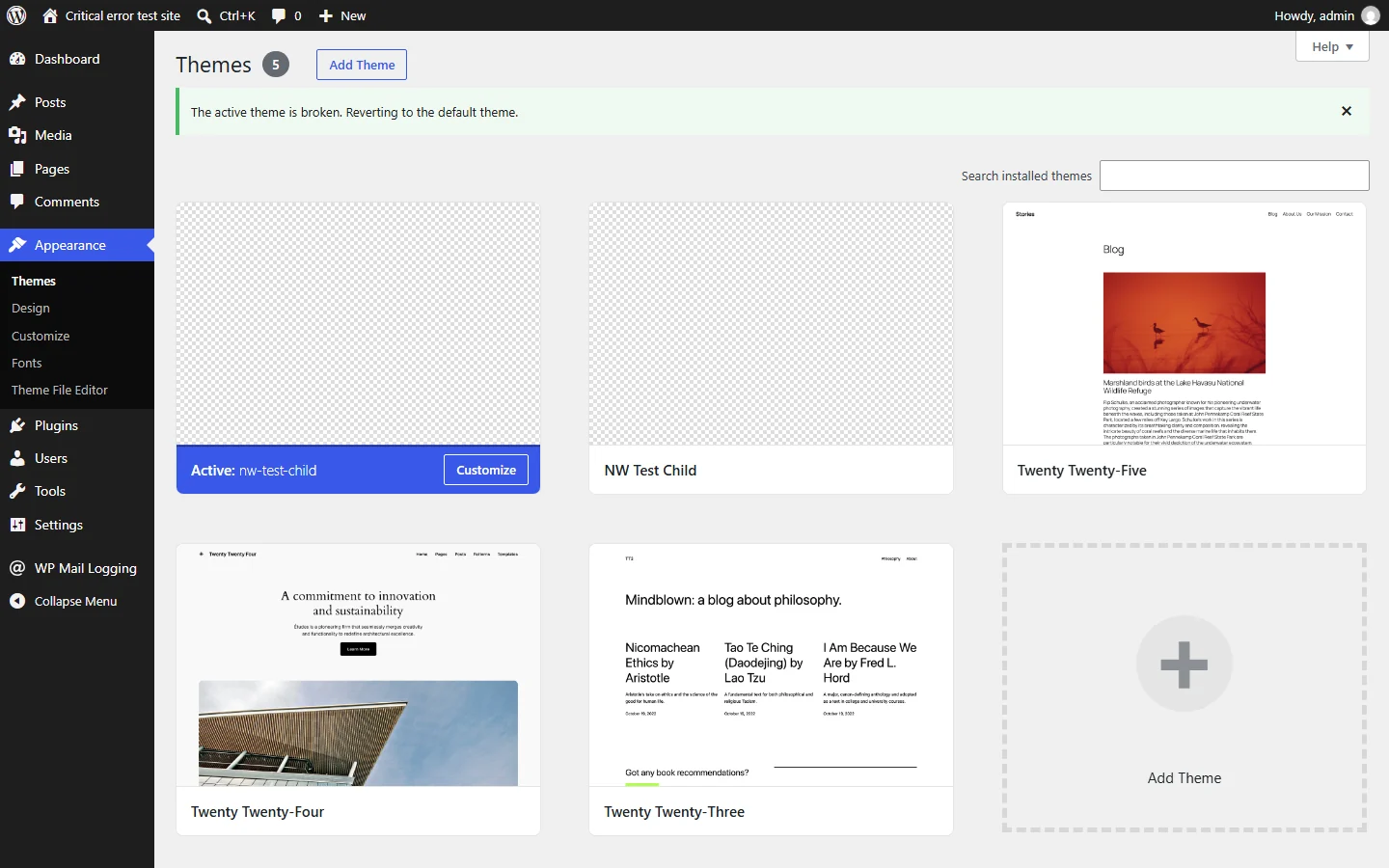
Twenty Twenty-Five took over, and only then did visitors see the site again; opening the Dashboard alone changed nothing for them. One catch from the WordPress code: the automatic switch works only if a default theme is installed on disk. If you deleted the Twenty themes to keep things tidy, upload one before renaming.
6. Raise the PHP memory limit
In the threads we went through, memory was rarely the cause: 1 of the 24 in the general forum and 2 of the 40 on the tag. The log makes it unmistakable:
[01-Oct-2026 18:01:52 UTC] PHP Fatal error: Allowed memory size of 134217728 bytes exhausted (tried to allocate 1052672 bytes) in /wordpress/wp-content/plugins/nw-test-big-import/nw-test-big-import.php on line 10
134217728 bytes is 128M, PHP’s default memory_limit. Two WordPress constants control memory. On every request, WordPress raises PHP’s memory_limit to WP_MEMORY_LIMIT (40M by default, 64M on multisite), but only if that is higher than the current value. WP_MAX_MEMORY_LIMIT (256M) applies in two situations: in wp-admin for administrators, once the plugins have loaded, and whenever WordPress unzips files, edits images or runs cron. So a plugin that exhausts memory while loading breaks wp-admin too.
One line in wp-config.php, above the “Add any custom values” comment, fixed it on the test install, where the host allowed a higher limit:
define( 'WP_MEMORY_LIMIT', '256M' );
WordPress only raises memory_limit, never lowers it: with 128M at the host, the 40M default changes nothing. If the host doesn’t let PHP scripts change memory_limit, the constant does nothing and the increase has to come from the hosting panel or support. The host’s real limit is under Tools > Site Health > Info > Server.
7. Check your PHP version
A plugin that ran for years can die the day your host switches the PHP version. On the test install, a gallery plugin ran on PHP 7.4 with nothing worse than deprecation notices in the log, and the same plugin crashed on PHP 8.3:
[01-Oct-2026 18:03:52 UTC] PHP Fatal error: Uncaught Error: Call to undefined function create_function() in /wordpress/wp-content/plugins/nw-test-legacy-gallery/nw-test-legacy-gallery.php:8
If the error started right after a PHP change, that’s your prime suspect. Renaming the old plugin’s folder brings the site back; the durable fix is updating the plugin or replacing it with one that is maintained. Rolling PHP back only buys time: as of October 1, 2026, PHP 7.4, 8.0 and 8.1 are out of support and 8.2 gets security fixes only until December 31, 2026. WordPress 7.1 runs on PHP 7.4 and 8.0 to 8.5, and the official recommendation is 8.3 or newer. Your current version is in Tools > Site Health > Info, under Server.
Related errors and messages
The white screen of death: a completely blank page
On our install, a blank page with an HTTP 500 appeared when the fatal error protection was switched off (the WP_DISABLE_FATAL_ERROR_HANDLER constant). The causes are the same, but without the protection WordPress sends no recovery email, so skip method 1: start at method 2, the debug log, and work down from there. The other blank page comes from a missing theme folder: visitors got an empty page with an HTTP 200 status until Appearance > Themes was opened (method 5).
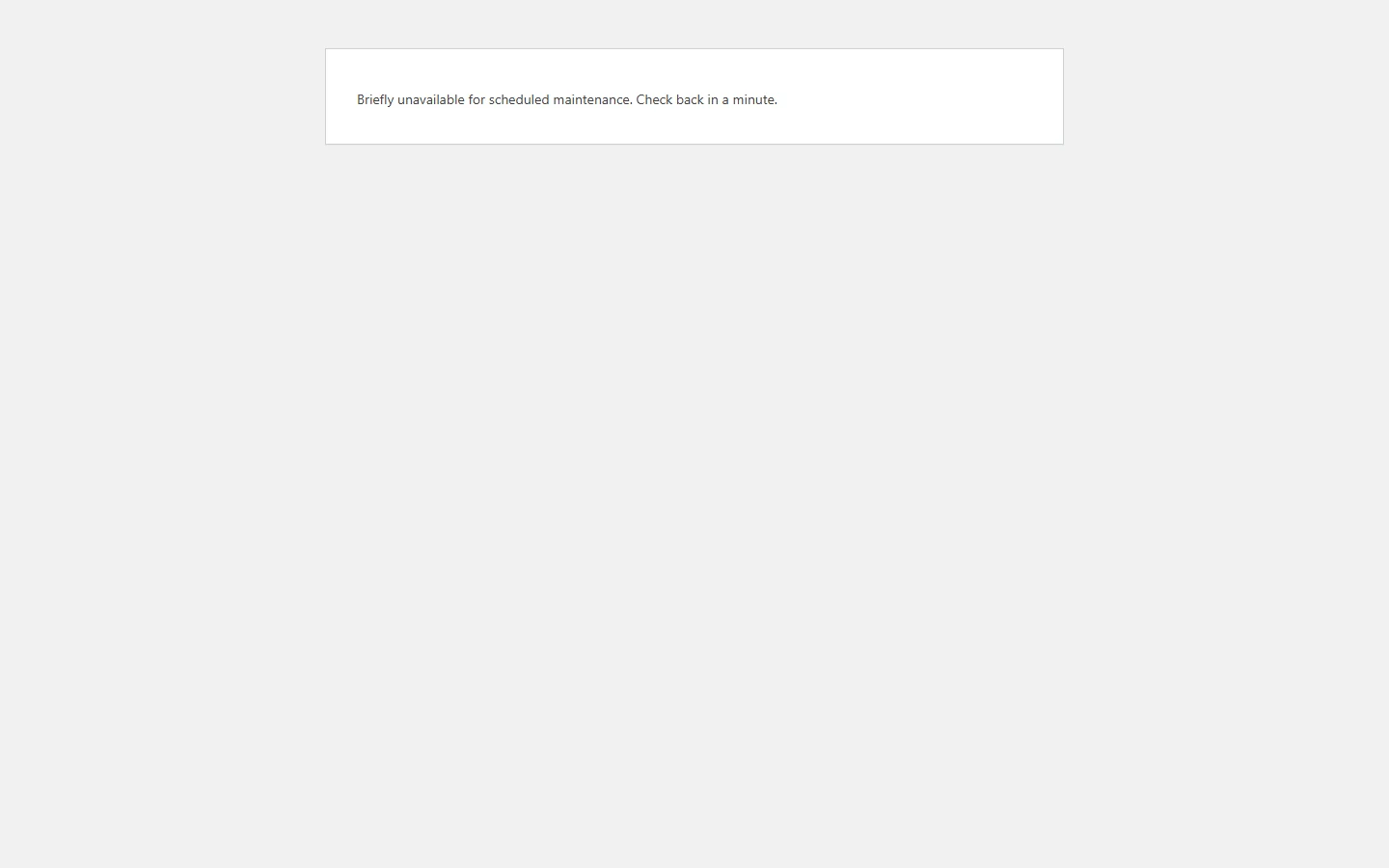
“Briefly unavailable for scheduled maintenance. Check back in a minute.”
This one comes from the .maintenance file WordPress creates during updates, served with an HTTP 503. WordPress ignores the file after 10 minutes; if the message outlives that, delete .maintenance from the site root.
Older wordings of the same error
WordPress 5.2 said “The site is experiencing technical difficulties.”, versions 5.3 to 5.5 said “There has been a critical error on your website.”, and since 5.6 it is “on this website”. Same fixes, and a WordPress that old is overdue for an update.
What not to do
Four mistakes that keep coming up in the threads:
- Don’t delete plugin or theme folders; rename them, so every step is reversible.
- Don’t turn on WP_DEBUG_DISPLAY (or display_errors) on a live site; errors printed on the page leak file paths to everyone.
- Don’t reinstall WordPress as a first move; in the threads above, the culprit was a plugin or the theme in 17 of the 24 confirmed cases, and a reinstall leaves both in place. It becomes the right move only when the log points at core files, as in method 4.
- Don’t leave WP_DEBUG on afterwards; switch it off and delete debug.log.
If nothing worked: what to send your host or developer
Most threads that went nowhere died because the author never shared a log. Hand over four things and whoever helps you can skip a day of guessing: the “Error Details” block from the recovery email, the last fatal error lines from debug.log, the report from Tools > Site Health > Info via the “Copy site info to clipboard” button, and a list of what you already tried.
One last thing. If this error keeps returning, the cause is rarely bad luck. In the general forum sample, an update was the trigger in 8 of the 24 confirmed cases, and the tagged sample points the same way. That is what a WordPress maintenance plan is for: Novaweb updates WordPress, the plugins and the theme with a backup before and checks afterwards, month by month, with no minimum term.


